How to split a video
There are four useful ways to split a video, and the right one depends on what the clips are for. SplitVideo's free video splitter does all four in your browser — equal parts, fixed time intervals, custom cut points, and single ranges — with no upload and no watermark. This guide explains each mode with worked examples, plus the limits worth knowing before you start.
Answer first
Need a set number of clips? Equal parts. Need clips of an exact length — 30s, 60s, 90s? Every N sec. Know the exact moments to cut? Cut points. Only need one section? Range.
1. Equal parts — a set number of clips
Equal parts divides the whole video by count rather than by time. A 60-minute recording split into 6 parts gives six 10-minute clips; a 34-minute recording split into 24 gives parts of about 85 seconds each. Choose this when the destination decides the count — a series of uploads, a set of lessons, or splitting a file that is too large to send in one piece.
Parts are divided by duration, and one run can create up to 24 clips. If you need more parts than that, split the video into two ranges first and run each range separately.
2. Every N sec — clips of an exact length
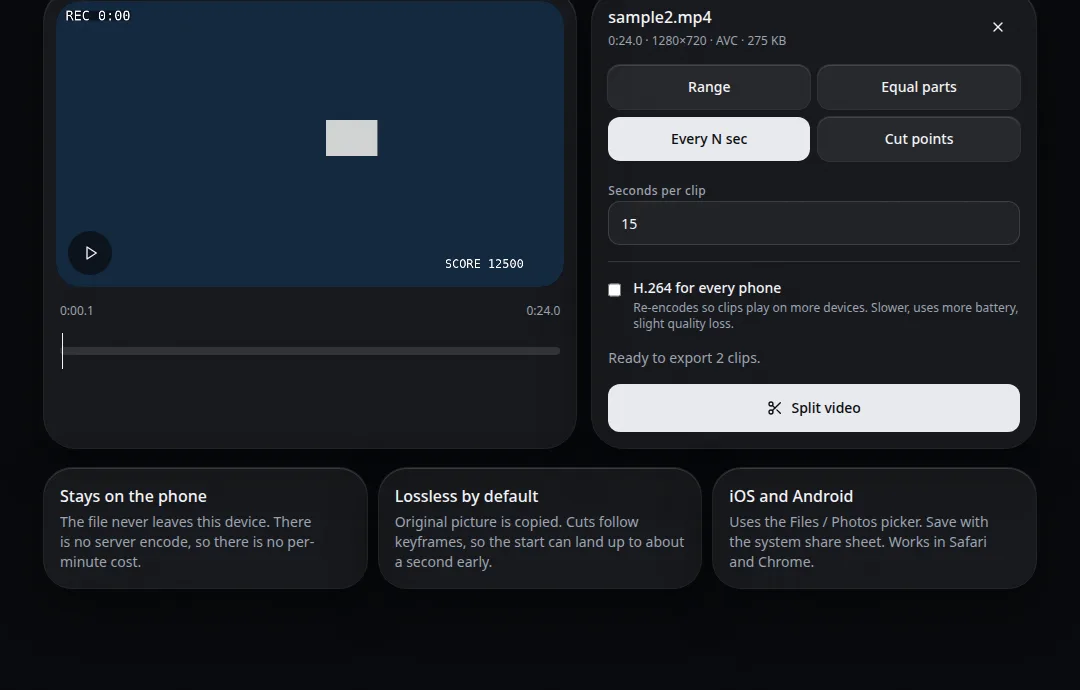
This mode cuts at a fixed interval: every 15, 30, 60, or 90 seconds, or any length you enter. It is the natural fit for platforms with a per-clip limit — a long video becomes a ready-made series of WhatsApp Status parts at 90 seconds each, or Shorts-length pieces at 60.
Do the maths before a long recording: clips per run is capped at 24, so a 90-second interval covers up to 36 minutes in one run. A 50-minute video at 90 seconds needs 34 clips — split it as two ranges (0:00–25:00 and 25:00–50:00) and run each half. The final clip of a run is the remainder, so it is usually shorter than the rest; that is expected, not an error.
3. Cut points — cut exactly where the moments are
When the content decides the cuts — highlights in a match, answers in an interview, steps in a tutorial — place cut points on the timeline instead. Scrub to each moment, add a point, and every segment between points becomes its own clip. This is slower than the automatic modes but it is the only one that respects what is actually in the video.
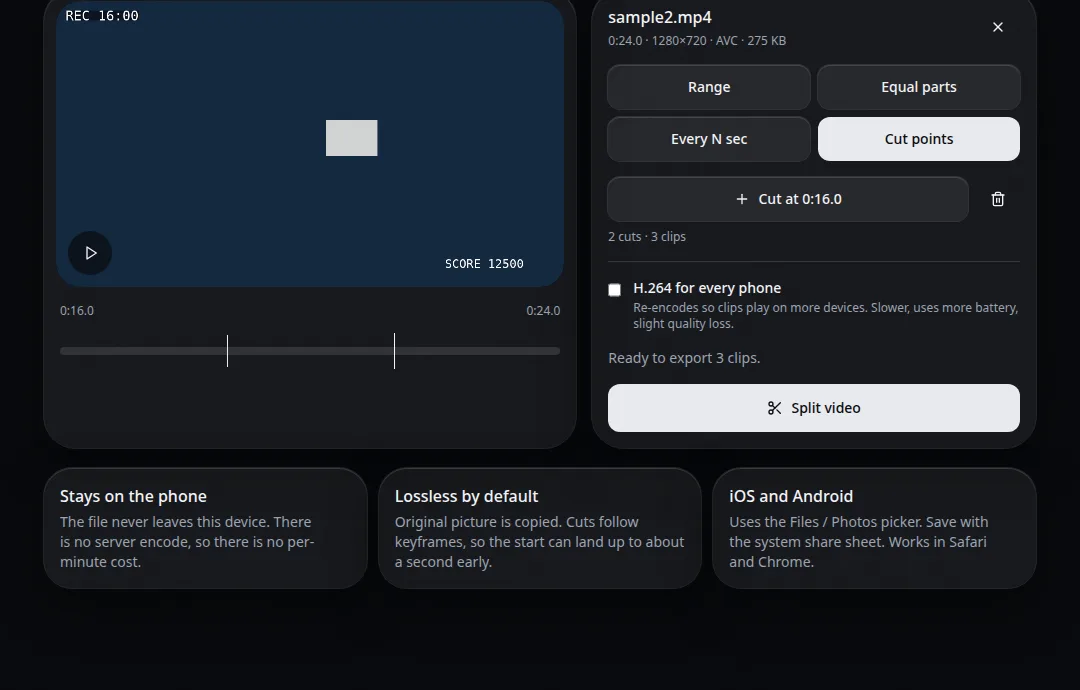
A practical workflow: watch once at high speed and drop rough points, then nudge each point while previewing the seconds around it. Export, and your clips are named in order so they stay sequenced in your file manager.
4. Range — keep one section, ignore the rest
Range exports a single start-to-end section: the one goal from a full match, the one answer from an hour-long call. It is also the helper mode for big jobs — use ranges to divide a very long or very large recording into halves before applying equal parts or intervals to each half, which is gentler on your device's memory. For files measured in gigabytes, see the large video files guide.
Which mode should you use?
| Your goal | Mode | Typical setting |
|---|---|---|
| A series of uploads from one recording | Equal parts | 4–12 parts |
| Clips that fit a platform limit | Every N sec | 30s, 60s, or 90s |
| Highlights and moments | Cut points | One point per moment |
| One section of a long video | Range | Start and end time |
The keyframe detail that explains most "wrong" cuts
Video streams store complete pictures — keyframes — every second or so, with the frames between them stored as changes. A lossless cut can only begin at a keyframe, so by default a SplitVideo clip can start up to about a second from the exact point you picked, and in return it is fast and bit-for-bit identical to the source. When a boundary must be exact, enable the optional H.264 re-encode for that export: slower, frame-exact, and the right trade for dialogue and music cues.
Honest limits
- Up to 24 clips per run — use two ranges for longer series.
- Your browser must be able to play the file. MP4, MOV, and WebM from phones and recorders work; an exotic codec that your browser cannot decode cannot be split on-device.
- Size is limited by device memory, not by us. There is no upload cap because there is no upload — but a phone with little free memory will struggle with multi-gigabyte files. The large files guide covers what actually works, up to a real 15 GB recording.
- The original frame is kept. SplitVideo does not crop, pad, or reformat — vertical versions are a job for your editor after splitting.
FAQ
Why is my last clip shorter than the others?
Because the recording rarely divides exactly. Splitting a 34-minute video every 90 seconds gives 22 full clips plus a final shorter one with the remainder. That last clip is complete — it is just the tail of the recording, not a cut-off.
Can I split an MP4 without losing quality?
Yes. SplitVideo's default mode copies the original video and audio streams into each clip instead of re-encoding them, so the picture and sound are the same data as the source file. The optional H.264 mode re-encodes, which trades a little quality and speed for frame-exact cuts.
Why does a clip sometimes start a fraction of a second early or late?
Lossless cuts can only land on keyframes — the complete frames a video stream stores every second or so. If your cut point falls between keyframes, the clip boundary snaps to the nearest one. When a cut must be exact (a punchline, a goal, a beat), use the H.264 re-encode option for that export.
Splitting on a phone instead? The phone guide covers iPhone and Android specifics. Something not working? See troubleshooting.