Splitting very large video files
Most online splitters reject multi-gigabyte files, because their business model starts with uploading your video to their server. SplitVideo never uploads, so there is no server cap to hit — the real limits are your device's memory and storage. This page documents an actual large-file job done with this tool, then the playbook for repeating it.
Case study · October 2026 · Last updated 23 October 2026
The job: one 15.09 GB recording, 24 parts
SplitVideo's creator records gameplay sessions on an iPad. One session — recorded on 20 October 2026 — came to 15.09 GB for a 34-minute video. A single file that size is unusable for Shorts or Reels, and uploading it anywhere would take longer than editing it. Instead it was split with this tool, in the browser, into 24 equal parts of about 85 seconds each — a ready series of clips from one session, with the original quality untouched.
| Source file | Screen recording (QuickTime / MP4), H.264 + AAC |
| Size | 15.09 GB (15,089,641,601 bytes) |
| Duration / resolution | 34 min 1 sec · 2880 × 1800 |
| Split | Equal parts × 24 (≈85 seconds each), one run |
| Result | 24 MP4 clips, exported the same afternoon, nothing uploaded |
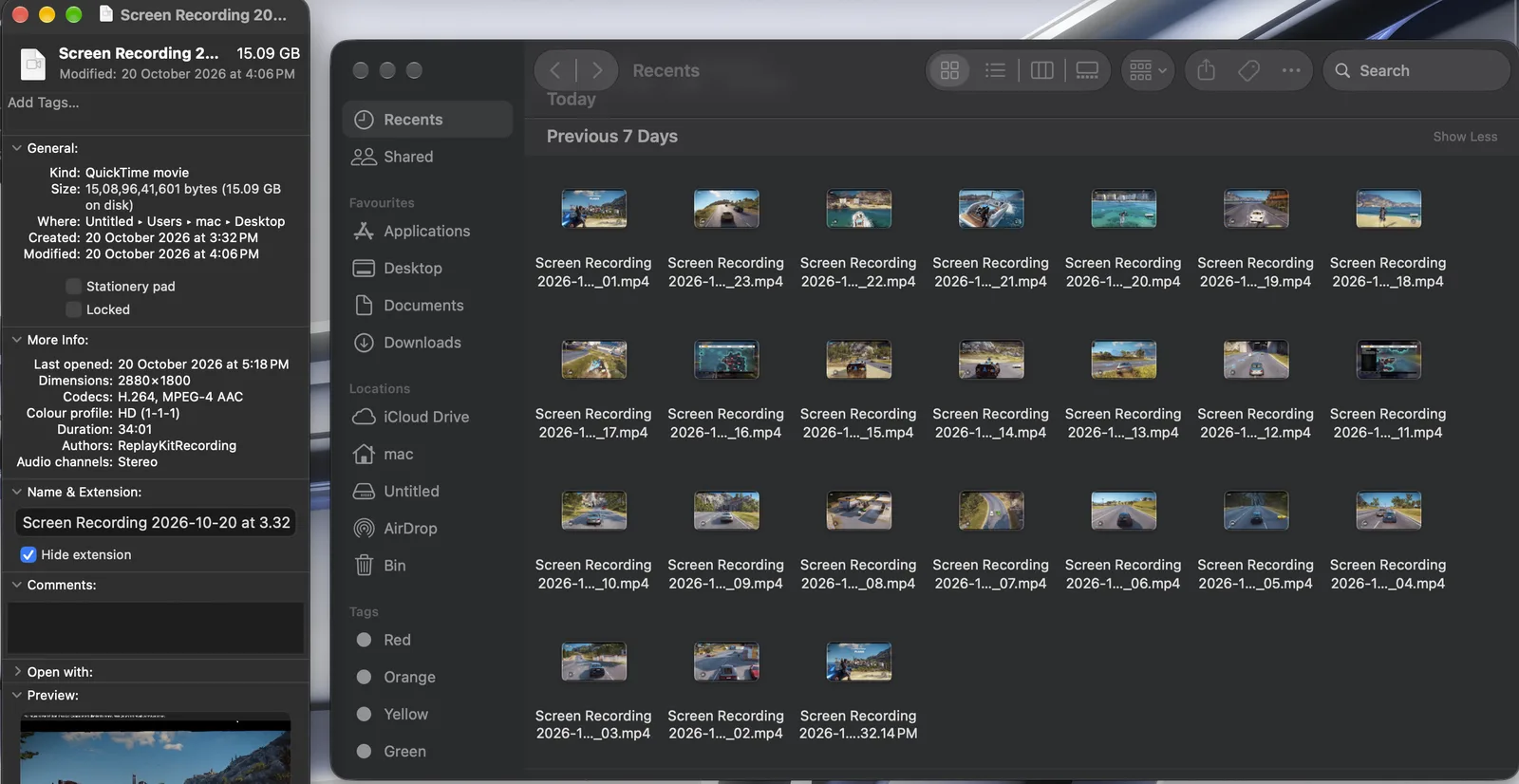
The Finder windows above are the job itself: the original recording's file information on the left, and the 24 resulting parts — _01 through the final clip — on the right.
Why a browser can do this at all
Two design choices make it possible. First, the file is read locally — your browser opens it from your disk or phone storage, so "uploading 15 GB" (the step that makes server tools slow or impossible) simply does not exist. Second, the default export copies the existing video and audio streams into each part instead of re-encoding them. Copying is bounded by your storage speed, not your processor, which is why a job this size finishes in minutes rather than the better part of an hour — and why every part keeps the source quality exactly.
The big-file playbook
- Prefer a desktop browser for files above ~8 GB. Phones can do a lot (see the phone guide), but tab memory limits make very large files a desktop job.
- Check free storage first. Your parts together are roughly the size of the original — a 15 GB job needs about 15 GB free.
- Use ranges to stage huge jobs. If a full run strains your machine, export the first half as a range, then the second, and split each half separately.
- Keep the machine awake. A laptop that sleeps mid-export pauses the browser; plug in for long runs.
- Stay in the lossless default. The H.264 re-encode option on a 15 GB file means re-encoding 15 GB — far slower and harder on memory. Use it for small, precision cuts, not bulk splitting.
Honest expectations by file size
| File size | What to expect |
|---|---|
| Up to ~2 GB | Any modern phone or computer handles this comfortably. |
| ~2–8 GB | Desktop is easy; recent phones manage, ranges help older ones. |
| ~8–16 GB | Use a desktop browser with storage headroom — the 15.09 GB case above sits here. |
And the honest boundary: if your file uses a codec your browser cannot play at all, or you need frame-by-frame editing rather than splitting, a desktop editor is the right tool. For everything a browser can play, splitting it here is usually the fastest path from one huge recording to a set of usable clips. If a big file fails, the troubleshooting page covers the causes in order.
FAQ
What is the largest video SplitVideo can split?
There is no file-size limit set by SplitVideo, because the file is never uploaded — the practical limit is your device's memory and free storage. A 15 GB recording has been split on a desktop browser; on a phone, files of a few gigabytes are realistic, especially when split in ranges.
Does splitting a very large video reduce its quality?
No. The default mode copies the original video and audio streams into each part without re-encoding, at any file size. A clip from a 15 GB recording is the same picture data as the source — only shorter.
Why did my huge file fail to load?
The usual causes are a codec your browser cannot decode, a phone browser running out of memory while reading the file, or the video still being in cloud storage rather than on the device. The troubleshooting page walks through each one.